Invoice intake agent
Watches a Gmail inbox for supplier invoices, reads each attachment with Claude, and turns it into an AP bill ready for Sage Intacct - with a review screen, a “key this into Sage” sheet, JSON/XML payloads and a CSV that drops into the purchase invoice log.
- Gmail (invoices@…)
- Claude reads the PDF/image
- Sage-shaped bill
- review
- post / export
It runs on the accounts machine, not in the cloud. Once started, it lives at http://localhost:8765 in your browser. API keys, the Gmail token and every invoice stay in the data folder on that machine. Nothing is hosted online, and this website holds no data - it is the front door: get the app, set it up, and see how the workflow goes.
The three pages
Get it running
One machine, one browser tab. The first start takes a minute or two while it sets itself up; after that it starts straight away.
- Download the app with the button above (or from the releases page) and unzip it somewhere sensible, such as a folder called Invoice agent in Documents.
- Have Python 3 on the machine. On Windows, install it from python.org and tick Add python.exe to PATH in the installer. Macs and Linux machines usually have it already.
- Start it. On Windows, double-click
run.bat. On a Mac, open Terminal, typebash(with a space), dragrun.shinto the window and press Enter. The window that opens is the app running - leave it open while you work; closing it stops the app. - Open
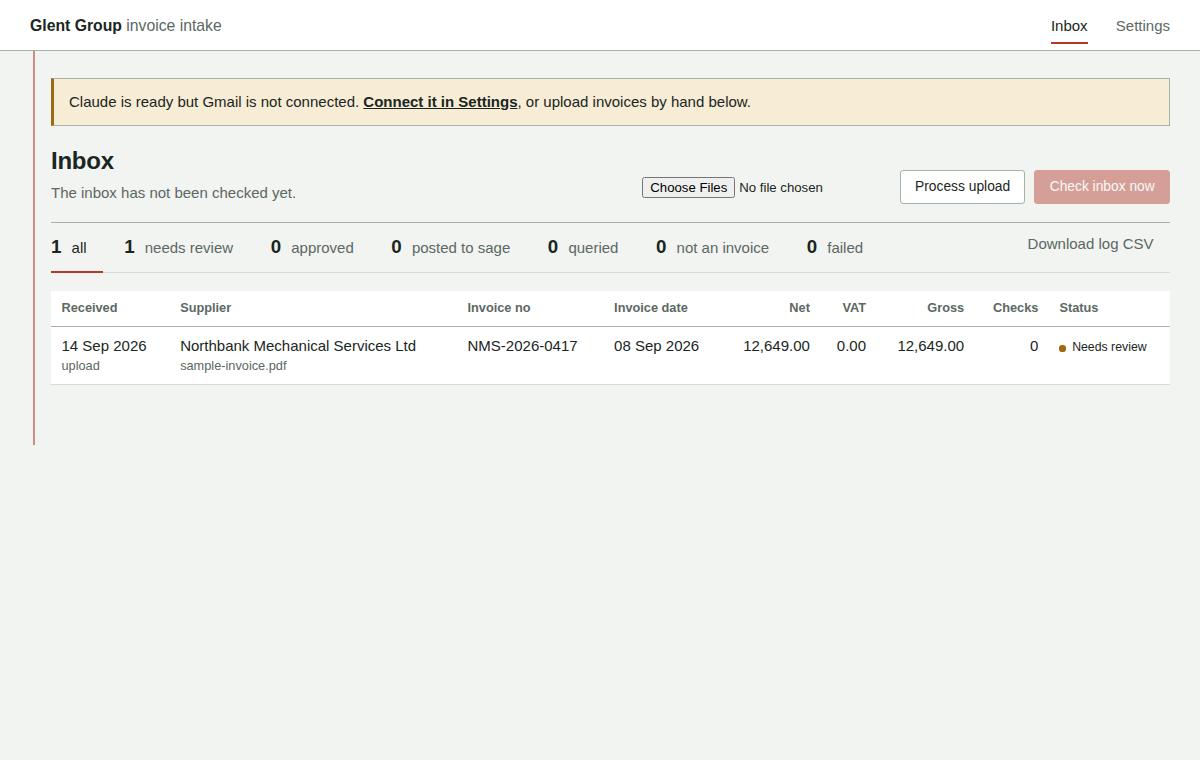
http://localhost:8765in your browser. The Inbox will tell you what still needs connecting.
Prefer a different port, or want the data folder in a synced location? Set INVOICE_AGENT_PORT or INVOICE_AGENT_DATA before starting; otherwise nothing needs configuring outside the Settings page.
Set up, on the Settings page
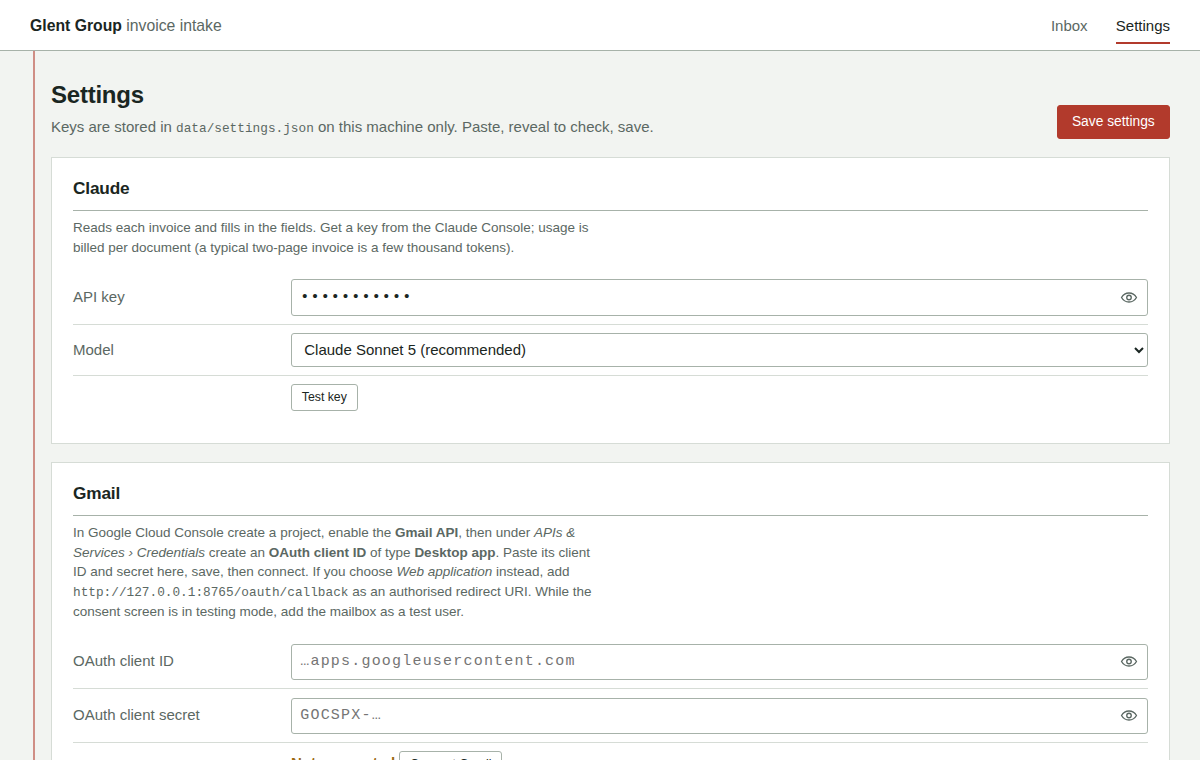
Every key field is masked; the eye button reveals it so you can check a paste. Save with the button at the top or the bottom of the page.
Claude
Paste an API key from the Claude Console. Test key checks it without spending tokens. Sonnet 5 is the default and is plenty for invoices; Haiku 4.5 is cheaper if volume gets high.
Gmail
The app talks to the Gmail API with OAuth, so it needs an OAuth client rather than a password:
- Google Cloud Console → create a project → APIs & Services → Library → enable Gmail API.
- OAuth consent screen → External → add the invoices mailbox as a test user (or publish the app if it is a Workspace account).
- Credentials → Create credentials → OAuth client ID → Desktop app. Paste the client ID and secret into Settings, save.
- Click Connect Gmail, sign in as the invoices mailbox, allow access. The token lands in the
datafolder and refreshes itself.
If Google complains about redirect_uri_mismatch, create the client as Web application instead and add the redirect URI shown on the Settings page.
The search box uses Gmail's own syntax (has:attachment is:unread label:Invoices, from:@supplier.co.uk, and so on). After a message is processed it is marked read and labelled Invoices/Processed, and that label is always excluded from the next search, so nothing is read twice.
Sage Intacct
Optional. With Web Services credentials (sender ID and password, company ID, user ID and password) an approved invoice can be posted straight in as an AP bill - as Draft by default, so accounts can check it inside Intacct before it posts. Without them, everything still works: you get the entry sheet, JSON, the XML gateway body, and the CSV.
Sage coding
The maps that turn extracted lines into Intacct fields. IDs must match what exists in the Intacct company exactly - copy them from the vendor, GL account, project and tax detail lists there.
| Setting | Used for |
|---|---|
| Vendor map | supplier name on the invoice → VENDORID (fuzzy on case, punctuation and Ltd) |
| GL account by category | labour / materials / plant / subcontract / services / expenses / other → ACCOUNTNO |
| VAT tax details | 20 / 5 / 0 / reverse charge → Intacct tax DETAILID |
| Project map | site code or PO prefix → PROJECTID |
| Payment terms | days on the invoice → TERMNAME |
| CIS / retention control | deductions become negative lines to these accounts |
| Location / department | stamped on every line |
Anything that cannot be mapped is listed as a check on the invoice and blocks Approve until you fill it in. You can type a vendor or project ID straight on the invoice.
What gets extracted
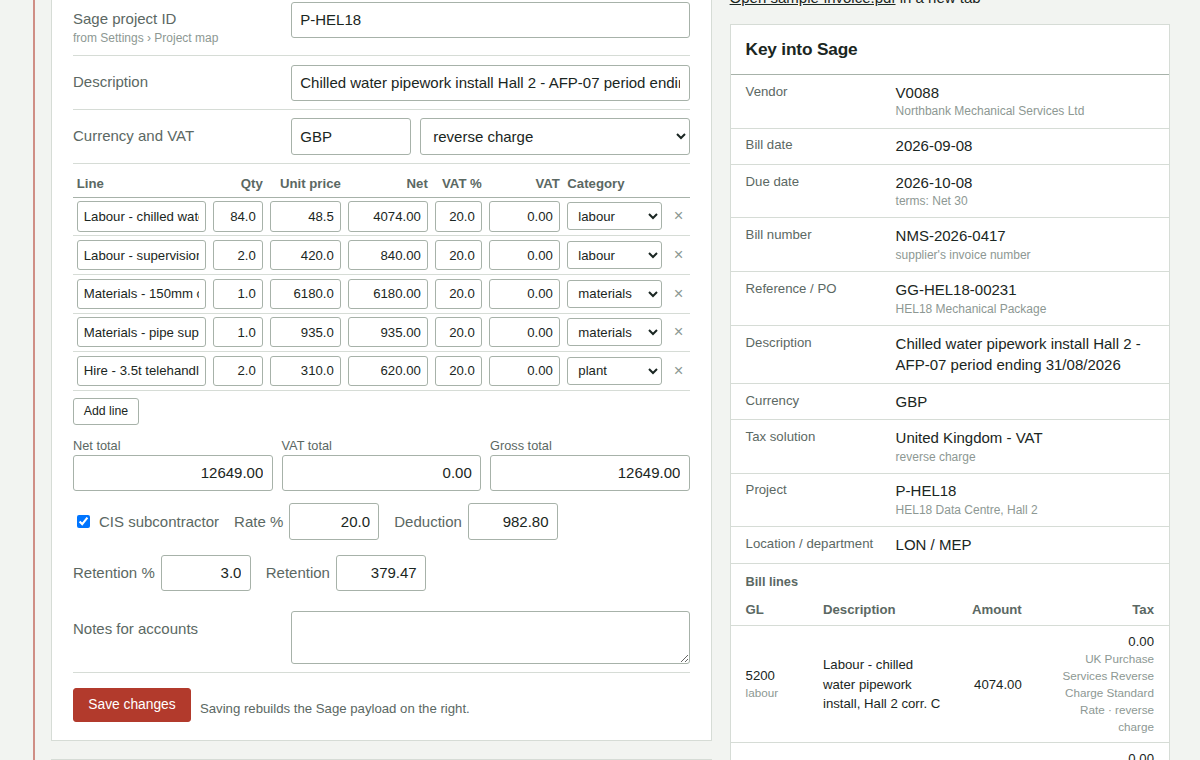
For every invoice or credit note: supplier (name, address, VAT and company numbers, remittance email), invoice number and dates, payment terms, PO number and other references, project / site, one-line description, currency, every line with net / VAT rate / VAT / category, net-VAT-gross totals with a VAT breakdown, VAT treatment (including the domestic reverse charge for construction services), CIS labour/materials split and deduction, retention withheld, amount payable, bank details for the payment run, plus a confidence score and a list of things to check by hand. Totals are re-checked arithmetically after extraction.
Statements, remittances, quotes and marketing PDFs are filed under Not an invoice rather than mapped.
Workflow
- Check inbox now (or set a polling interval in Settings) - or drop a PDF onto Process upload to test.
- Each attachment appears in the Inbox as Needs review with the number of open checks.
- Open it: the left side is the extracted data (editable, with the line editor recalculating totals), the right side is the document and the Key into Sage sheet in the order of Intacct's bill screen.
- Save changes rebuilds the Sage payload. Approve once the checks are clear.
- Post to Sage (if connected) or Mark keyed in by hand; Query parks it.
- Download log CSV on the Inbox for the purchase invoice log - one row per invoice, columns matching the entry sheet.
Things to know
- The Intacct payload follows the documented
APBILLcreate object; credit notes map toAPADJUSTMENTwith negative amounts. The PO number goes in the bill's reference field. - The Intacct push has been written against the XML gateway spec but not yet exercised against a live company - do the first post as Draft and compare it against a bill keyed by hand.
- Attachments and extracted data are stored locally under
data. Delete a row from the Inbox to remove it; the email keeps its processed label. - Only PDF, PNG, JPG and WEBP attachments are read; images under 20 KB are treated as logos and skipped.